Importing Your Guest List from Aisle Planner
Aisle Planner downloads one guest list per event. Download each one and upload them to Wedping together. We combine them for you, keeping households, addresses and every event's RSVPs.
Step 1: Download a Spreadsheet for Each Event
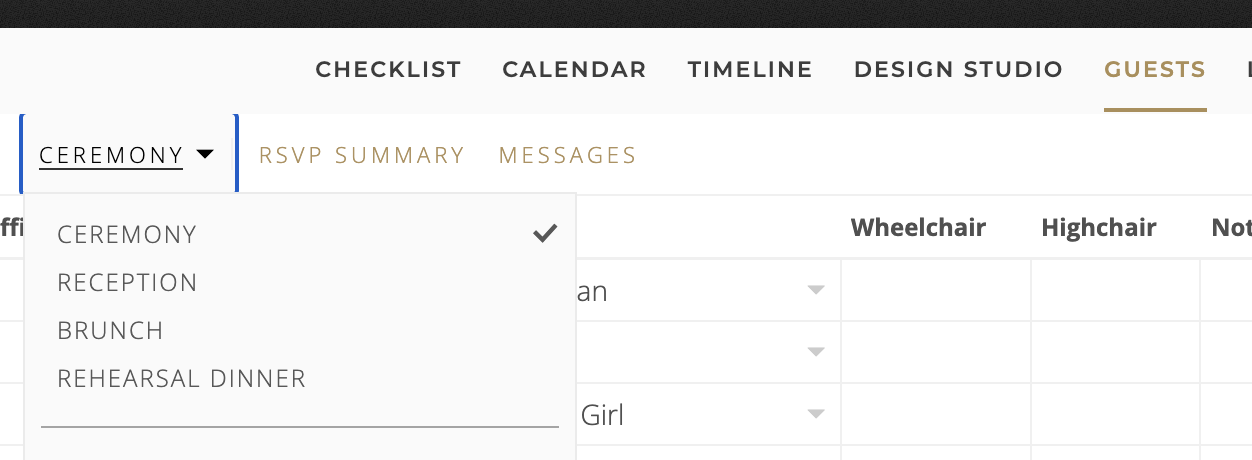
- Open Guests in Aisle Planner and choose an event, like Ceremony.
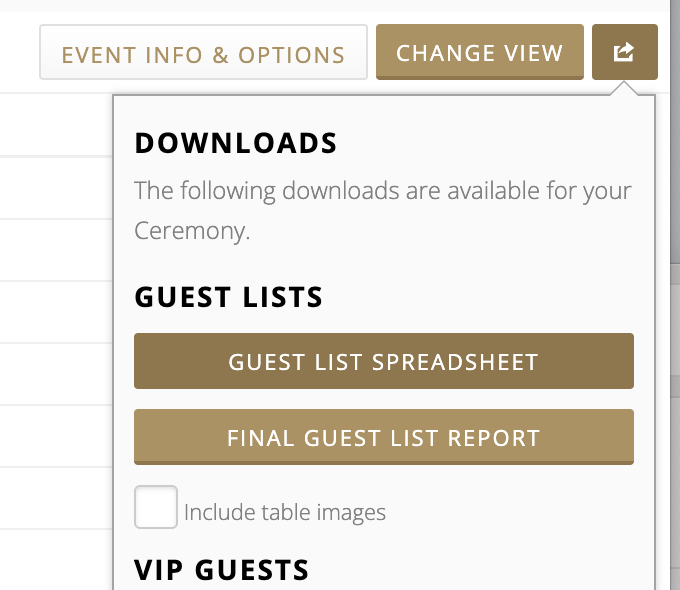
- Click the share icon at the top right, then Guest List Spreadsheet.
- Repeat for each event, like Reception, Brunch and Rehearsal Dinner. Don't edit the files.
Step 2: Upload to Wedping
- Open your event's Guest List page and click Import guests.
- Upload one of your spreadsheets. We'll recognize it.
- Click + Add another event and add the rest.
- Check the event name next to each file. We fill it in from the spreadsheet, and new events are added to your schedule.
- Click Continue, review your guests, then click Add to list.
What Carries Over
Every guest, once
Guests who appear in several events' spreadsheets come over as one guest in Wedping.
Households
Guests who share an Aisle Planner party are linked, so one person can RSVP for everyone.
Addresses and phone numbers
Each household's address carries over. Its phone number and email go to the first guest in the household.
RSVPs for each event
Each spreadsheet becomes an event. Attending and Declined carry over, Awaiting RSVP means invited with no reply yet, and guests missing from an event's spreadsheet aren't invited to it.
Groups and guest details
Aisle Planner groups become groups in Wedping. Role, age, meal choice and the other guest details can come over as custom guest details.
Good to Know
Importing again is safe
Guests that match someone already on your list, by phone, email, or name, are updated instead of added twice.